
Home / Guides / How to compress a PDF
How to compress a PDF
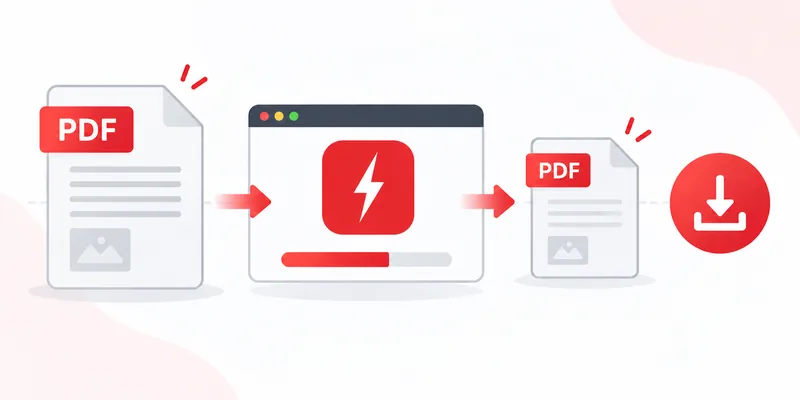
Compressing a PDF with RayoPDF takes three steps and a few seconds. No account, no installation, and your file never leaves your device. Try it now or read the full walkthrough below.
Step 1 — Provide your PDF
Drag your file into the compressor box, click the box to open your file picker, or paste it straight from the clipboard with Ctrl+V (Cmd+V on Mac). Anything up to 300 MB works — scans, invoices, slide decks, ebooks.
Step 2 — Let it compress
Compression starts by itself the moment the file arrives. Behind the scenes the tool re-encodes oversized images and rebuilds the document's internal structure more efficiently, while leaving text, fonts, page order and orientation untouched.
Want control? Pick a level before dropping the file:
- Low — a gentle squeeze that keeps high quality.
- Medium — roughly halves most files with a clean look.
- High — the default; strong compression for email and sharing.
- Maximum — the smallest file, with visible quality trade-offs.
Step 3 — Download the result
The compressed PDF downloads automatically, named after the original — report.pdf becomes report-compressed.pdf — so your source file is never overwritten.
Keeping quality while shrinking size
Start with Medium when quality matters and step up only if the file is still too big. Photos and scans decide the outcome: a 40-page text document may barely shrink (there is nothing to squeeze), while a 10-page scan will usually shrink a lot. That is normal — it reflects what's inside the file, not a malfunction.
Troubleshooting
- “It barely shrank.” Your PDF is likely text-only or already optimized. Try Maximum, or accept that the file is already lean.
- “It looks blurry.” You compressed too hard for image-heavy pages. Re-run the original at Low or Medium.
- “It won't load.” Password-protected or damaged PDFs may refuse to open. Remove the password in your PDF reader first, then try again.
Related reading
Back to all PDF guides, or jump straight to the free PDF compressor. Also see: How to Compress a PDF for Email How to Compress a Scanned PDF Why Is My PDF So Large? How to Compress a PDF Without Losing Quality.