
Home / Guides / How to compress a scanned PDF
How to Compress a Scanned PDF
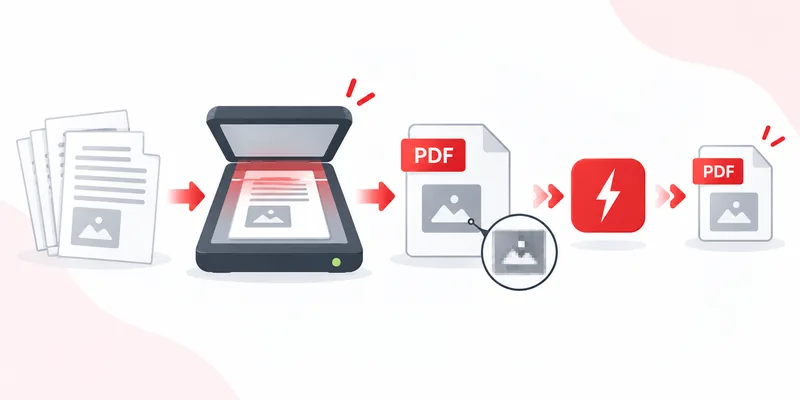
A scanned PDF is not really a document — it is a stack of photos of paper, one full-page image per sheet. That is why ten scanned pages can outweigh a hundred pages of typed text. The good news: photos compress well. Run your scan through RayoPDF and the file usually drops dramatically while the pages stay perfectly readable.
Why scanned PDFs are so large
A scanner captures everything indiscriminately: paper texture, dust specks, margin shadows and all. Each page becomes a high-resolution image, often far more detailed than a screen or a home printer can show. Learn what else adds weight in why your PDF is so large.
How to compress a scanned PDF in 3 steps
1. Drop the scan into RayoPDF. Files up to 300 MB are accepted, which covers even long scan jobs.
2. Start at Medium. Scans usually respond so well that Medium is enough — and it keeps small print crisp. Move to High only if the file must be much smaller.
3. Read the result like your recipient would. Zoom to 100% and check the smallest text on the page: stamps, handwritten notes, footnotes. If anything turns soft, re-run the original one level gentler.
Readability first: the zoom test
Scans live or die by legibility, so judge quality the way it will be used. On-screen reading tolerates more compression than printing: if the recipient will print the file, stay conservative (Low or Medium) and test-print one page. Crooked or shadowed scans compress worse — straightening pages in your scanner app before compressing often beats pushing the level harder afterwards.
Common mistakes
- Starting at Maximum. Maximum can blur the fine print that makes a scan useful. Work upward from Medium instead.
- Compressing a photo of a screen. Moiré patterns and glare confuse compression and bloat the file. Re-scan the paper when you can.
- Expecting miracles on clean scans. An already tidy black-and-white scan has little to give — small savings there are normal, not a failure.
Frequently asked questions
Will compression make my scan unreadable?
Not if you level-match: Medium keeps typical scans crisp, and you can verify every page at 100% zoom before sharing. Only Maximum risks softening fine print.
Does RayoPDF run OCR on my scans?
No. RayoPDF shrinks the page images; it does not add a text layer or change the content. Searchable-text conversion needs separate OCR software.
My scanned file barely shrank. Why?
It was probably already efficient — clean black-and-white scans compress well at scan time. Try Maximum once; if nothing moves, the file is already lean.
Related reading
Back to all PDF guides, keep going with Why Is My PDF So Large? and How to Compress a PDF Without Losing Quality, or jump straight to the free PDF compressor.